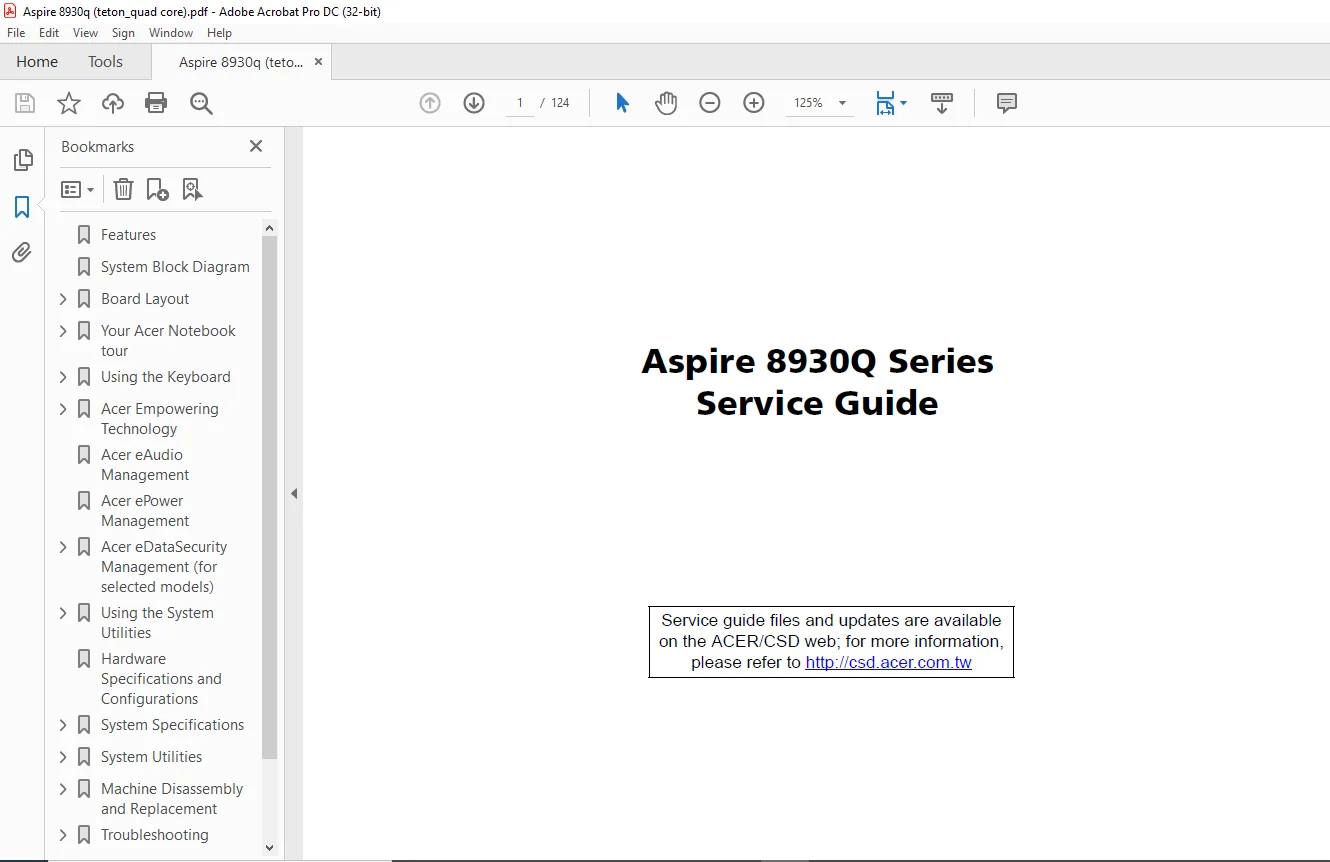
Aspire 8930Q Series Laptop Service Guide Manual – PDF DOWNLOAD
Original price was: $90.00.$25.95Current price is: $25.95.
Aspire 8930Q Series Laptop Service Guide Manual – PDF DOWNLOAD
Description
Aspire 8930Q Series Laptop Service Guide Manual – PDF DOWNLOAD
Preface
Before using this information and the product it supports, please read the following general information.
1. This Service Guide provides you with all technical information relating to the BASIC CONFIGURATION
decided for Acer’s global product offering. To better fit local market requirements and enhance product
competitiveness, your regional office MAY have decided to extend the functionality of a machine (e.g.
add-on card, modem, or extra memory capability). These LOCALIZED FEATURES will NOT be covered
in this generic service guide. In such cases, please contact your regional offices or the responsible
personnel/channel to provide you with further technical details.
2. Please note WHEN ORDERING FRU PARTS, that you should check the most up-to-date information
available on your regional web or channel. If, for whatever reason, a part number change is made, it will
not be noted in the printed Service Guide. For ACER-AUTHORIZED SERVICE PROVIDERS, your Acer
office may have a DIFFERENT part number code to those given in the FRU list of this printed Service
Guide. You MUST use the list provided by your regional Acer office to order FRU parts for repair and
service of customer machines
Aspire 8930Q Series Laptop Service Guide Manual – PDF DOWNLOAD
Features………………………………………………………………………………………………………………………………………………………………………………………. 7
System Block Diagram……………………………………………………………………………………………………………………………………………………………………………. 9
Board Layout…………………………………………………………………………………………………………………………………………………………………………………… 10
Top View…………………………………………………………………………………………………………………………………………………………………………………… 10
Bottom View………………………………………………………………………………………………………………………………………………………………………………… 11
Your Acer Notebook tour…………………………………………………………………………………………………………………………………………………………………………. 12
Front View…………………………………………………………………………………………………………………………………………………………………………………. 12
Closed Front View…………………………………………………………………………………………………………………………………………………………………………… 14
Rear view………………………………………………………………………………………………………………………………………………………………………………….. 14
Left View………………………………………………………………………………………………………………………………………………………………………………….. 15
Right View…………………………………………………………………………………………………………………………………………………………………………………. 16
Base view………………………………………………………………………………………………………………………………………………………………………………….. 17
Acer CineDash media console………………………………………………………………………………………………………………………………………………………………….. 18
Indicators…………………………………………………………………………………………………………………………………………………………………………………. 20
Easy-Launch Buttons…………………………………………………………………………………………………………………………………………………………………………. 21
Touchpad Basics…………………………………………………………………………………………………………………………………………………………………………….. 22
Using the Keyboard……………………………………………………………………………………………………………………………………………………………………………… 23
Lock Keys and embedded numeric keypad…………………………………………………………………………………………………………………………………………………………. 23
Windows Keys……………………………………………………………………………………………………………………………………………………………………………….. 24
Hot Keys…………………………………………………………………………………………………………………………………………………………………………………… 25
Special Key………………………………………………………………………………………………………………………………………………………………………………… 26
Acer Empowering Technology………………………………………………………………………………………………………………………………………………………………………. 27
You may also launch Acer Empowering Technology by running the program from the Acer Empowering Technology program group in the Start menu, or by double-clicking the icon if you have created adesktop shortcut….. 27
Acer eAudio Management………………………………………………………………………………………………………………………………………………………………………….. 28
Acer ePower Management………………………………………………………………………………………………………………………………………………………………………….. 29
Acer eDataSecurity Management (for selected models)………………………………………………………………………………………………………………………………………………… 31
Acer eRecovery Management……………………………………………………………………………………………………………………………………………………………………. 32
Acer eSettings Management……………………………………………………………………………………………………………………………………………………………………. 33
Windows Mobility Center……………………………………………………………………………………………………………………………………………………………………… 34
Using the System Utilities………………………………………………………………………………………………………………………………………………………………………. 35
Acer Bio-Protection (for selected models)……………………………………………………………………………………………………………………………………………………… 35
Launch Manager……………………………………………………………………………………………………………………………………………………………………………… 37
Hardware Specifications and Configurations………………………………………………………………………………………………………………………………………………………… 38
System Specifications…………………………………………………………………………………………………………………………………………………………………………… 7
BIOS Setup Utility………………………………………………………………………………………………………………………………………………………………………….. 45
Invoking BIOS Setup…………………………………………………………………………………………………………………………………………………………………………. 46
Information…………………………………………………………………………………………………………………………………………………………………………….. 47
Main…………………………………………………………………………………………………………………………………………………………………………………… 48
Security……………………………………………………………………………………………………………………………………………………………………………….. 50
Boot…………………………………………………………………………………………………………………………………………………………………………………… 53
Exit…………………………………………………………………………………………………………………………………………………………………………………… 54
BIOS Flash Utility………………………………………………………………………………………………………………………………………………………………………….. 55
BIOS Crisis Recovery………………………………………………………………………………………………………………………………………………………………………… 55
Unlock HDD password Utility………………………………………………………………………………………………………………………………………………………………….. 56
System Utilities……………………………………………………………………………………………………………………………………………………………………………….. 45
General Information…………………………………………………………………………………………………………………………………………………………………………. 58
Before You Begin………………………………………………………………………………………………………………………………………………………………………… 58
Disassembly Procedure Flowchard………………………………………………………………………………………………………………………………………………………………. 59
Removing the Battery Pack………………………………………………………………………………………………………………………………………………………………… 61
Removing the HDD/Memory Module/Wireless LAN Card/TV Tuner Card/System Fan/Thermal Modules/CPU……………………………………………………………………………………………………. 62
Disassembling the Main Unit………………………………………………………………………………………………………………………………………………………………. 68
Disassembly LCM module…………………………………………………………………………………………………………………………………………………………………… 72
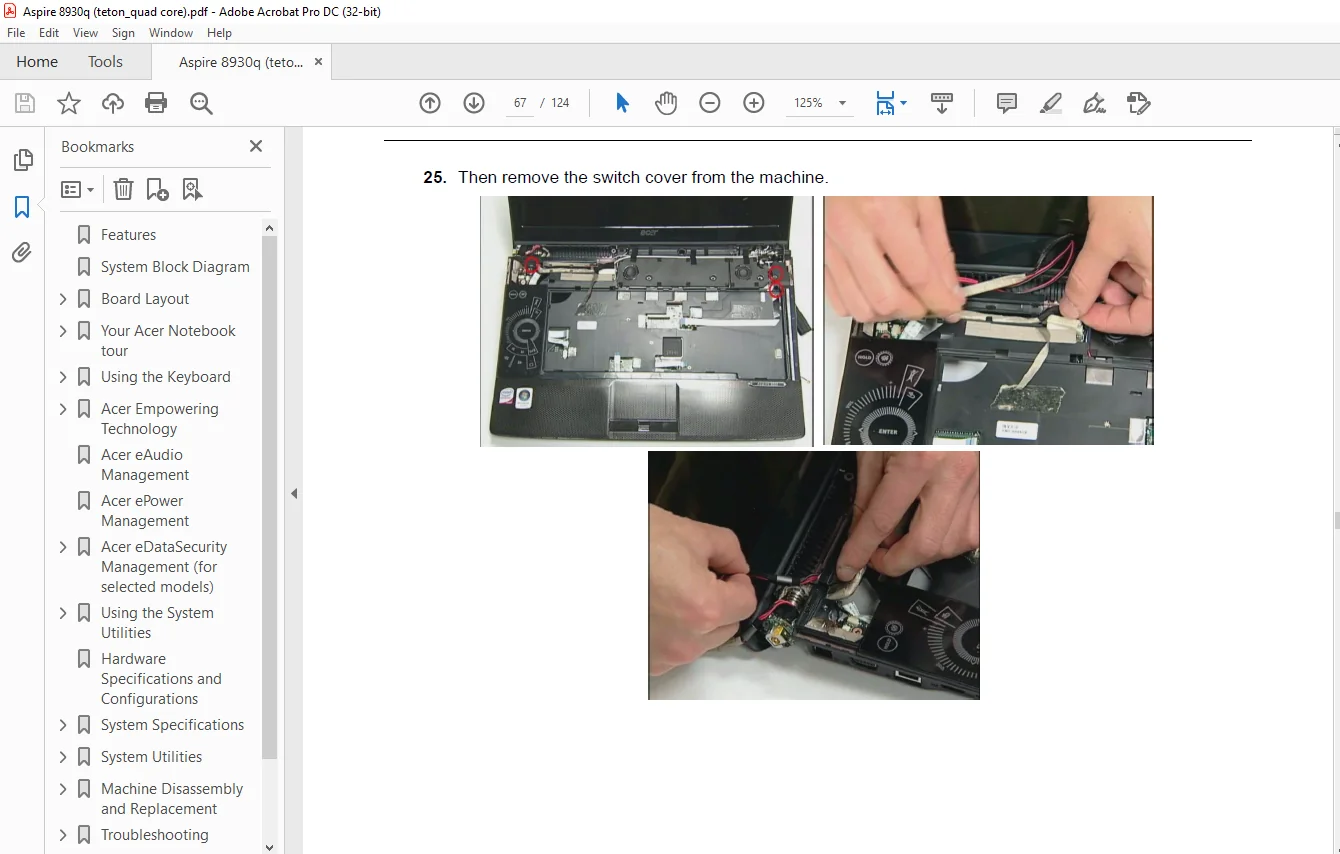
Disassembling the External Modules………………………………………………………………………………………………………………………………………………………… 73
Disassembling the ODD Module……………………………………………………………………………………………………………………………………………………………… 74
Machine Disassembly and Replacement………………………………………………………………………………………………………………………………………………………………. 57
System Check Procedures……………………………………………………………………………………………………………………………………………………………………… 76
External Diskette Drive Check…………………………………………………………………………………………………………………………………………………………….. 76
External CD-ROM Drive Check………………………………………………………………………………………………………………………………………………………………. 76
Keyboard or Auxiliary Input Device Check…………………………………………………………………………………………………………………………………………………… 76
Memory check……………………………………………………………………………………………………………………………………………………………………………. 77
Power System Check………………………………………………………………………………………………………………………………………………………………………. 77
Touchpad Check………………………………………………………………………………………………………………………………………………………………………….. 78
Power-On Self-Test (POST) Error Message……………………………………………………………………………………………………………………………………………………….. 79
Index of Error Messages……………………………………………………………………………………………………………………………………………………………………… 80
InsydeH2O Post Codes………………………………………………………………………………………………………………………………………………………………………… 83
Index of Symptom-to-FRU Error Message…………………………………………………………………………………………………………………………………………………………. 90
Intermittent Problems……………………………………………………………………………………………………………………………………………………………………….. 93
Undetermined Problems……………………………………………………………………………………………………………………………………………………………………….. 94
Troubleshooting………………………………………………………………………………………………………………………………………………………………………………… 75
Top View…………………………………………………………………………………………………………………………………………………………………………………… 95
Bottom View………………………………………………………………………………………………………………………………………………………………………………… 96
Jumper and Connector Locations…………………………………………………………………………………………………………………………………………………………………… 95
Aspire 8930Q Exploded Diagram………………………………………………………………………………………………………………………………………………………………… 98
Aspire 8930Q FRU List………………………………………………………………………………………………………………………………………………………………………..112
FRU (Field Replaceable Unit) List………………………………………………………………………………………………………………………………………………………………… 97
PLEASE NOTE:
- This is the same manual used by the dealers to diagnose and troubleshoot your vehicle
- You will be directed to the download page as soon as the purchase is completed. The whole payment and downloading process will take anywhere between 2-5 minutes
- Need any other service / repair / parts manual, please feel free to contact [email protected] . We still have 50,000 manuals unlisted