Epson Stylus 200 User’s Guide Manual – PDF DOWNLOAD
$24.95
Epson Stylus 200 User’s Guide Manual – PDF DOWNLOAD
Description
Epson Stylus 200 User’s Guide Manual – PDF DOWNLOAD
FILE DETAILS:
Epson Stylus 200 User’s Guide Manual – PDF DOWNLOAD
Language :English
Pages :133
Downloadable : Yes
File Type : PDF
IMAGES PREVIEW OF THE MANUAL:
DESCRIPTION:
Epson Stylus 200 User’s Guide Manual – PDF DOWNLOAD
Introduction
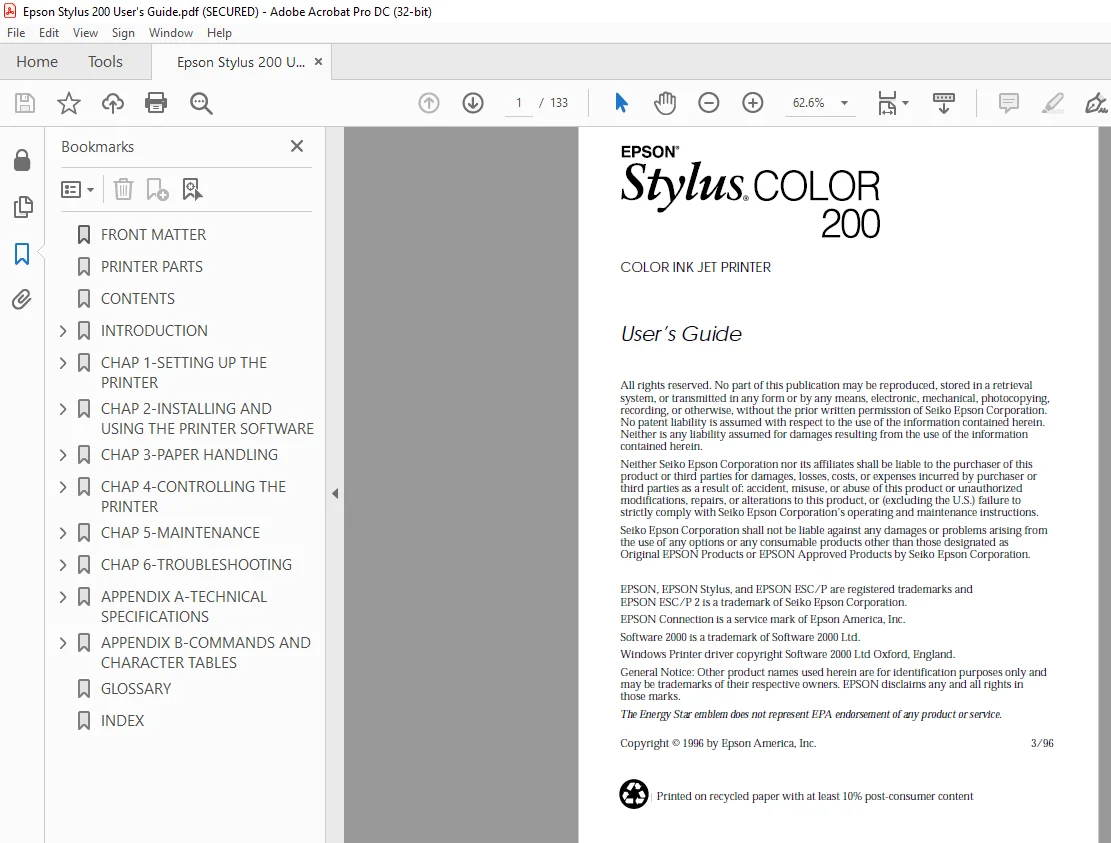
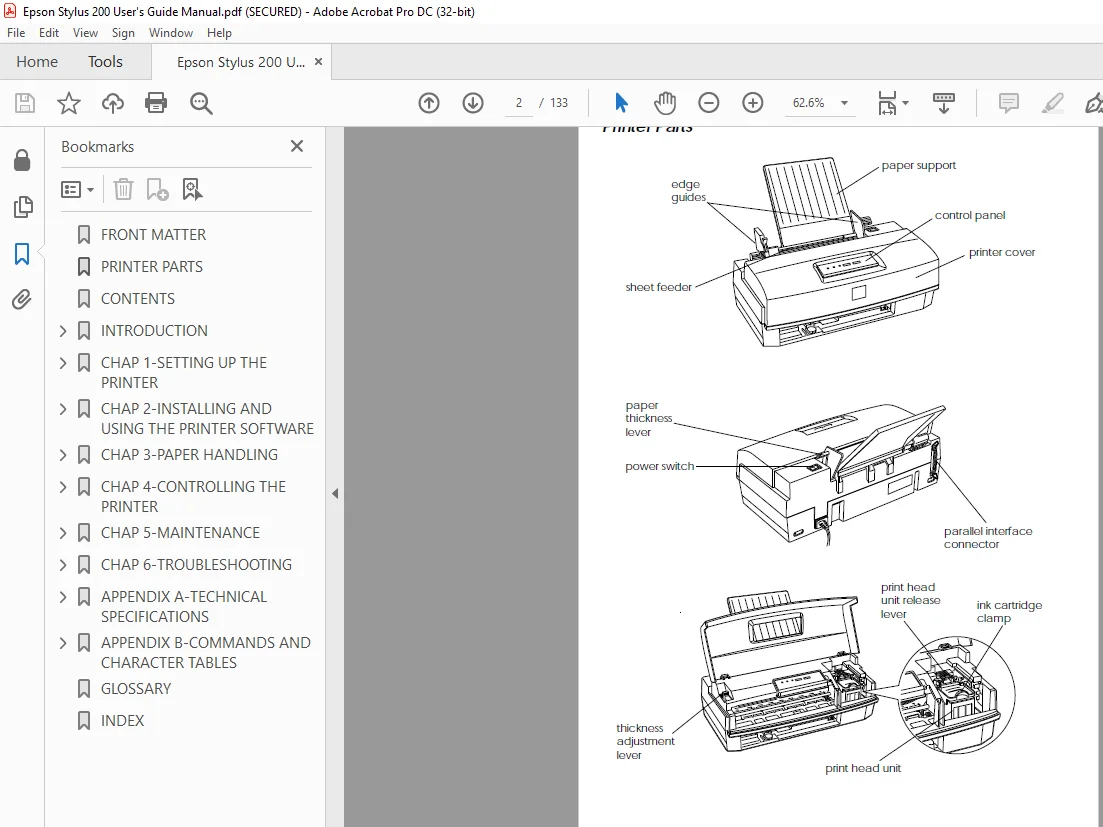
- The EPSON® Stylus® COLOR 200 is an affordable, high-quality ink jet printer that can print up to 16 million colors at high resolution to produce full-color, photo-quality images. It also produces realistic grayscale images, laser-quality text, and line art. The printer’s ink jet technology allows it to operate quietly,
keeping your workspace peaceful. - The Stylus COLOR 200 is easy to install and use. You simply set it up, connect it to your computer, and install the printer software, as described in this book. The printer has a built-in parallel interface so you can connect it to any IBM® PC compatible computer.
- The printer software includes a “driver” that controls printing and lets you choose from a wide variety of printer settings. You can change settings to improve print quality, speed up printing, or achieve special printing effects. And to make your selections easy, the driver includes an option that analyzes each page and automatically adjusts the settings before printing it.
TABLE OF CONTENTS:
Epson Stylus 200 User’s Guide Manual – PDF DOWNLOAD
Introduction
Getting the Most Out of Your Printer 0-1
If You Are New to Color Printing 0-3
Energy Star Compliance 0-4
Energy-saving Tips 0-5
How to Use This Manual 0-5
Where to Get Help 0-6
Electronic Support Services 0-7
Important Safety Instructions 0-9
Chapter 1 Setting Up the Printer
System Requirements 1-2
Unpacking the Printer 1-3
Setting Up the Printer 1-4
Selecting a Location 1-4
Attaching the Paper Support 1-4
Plugging In and Turning On the Printer 1-5
Charging the Ink Delivery System 1-6
Checking the Paper Thickness Lever 1-14
Loading Paper 1-15
Testing the Printer 1-17
Connecting the Printer to Your Computer 1-18
Chapter 2 Installing and Using the Printer Software
Installing the Printer Software 2-2
Installing the Software for Windows 31 2-2
Installing the Software for Windows 95 2-5
Installing a Driver for DOS Programs 2-8
Accessing the Printer Driver 2-9
Accessing the Driver From Windows Applications 2-9
Accessing the Driver From Windows 31 2-10
Accessing the Driver From Windows 95 2-10
Using the Printer Driver 2-11
Changing Settings 2-14
Using Online Help 2-15
Accessing Online Help From Windows 31 2-15
Accessing Online Help From Windows 95 2-15
Chapter 3 Paper Handling
Choosing Paper and Other Media 3-2
Setting the Paper Thickness and Adjustment Levers 3-3
Paper Thickness Lever 3-3
Thickness Adjustment Lever 3-4
Loading Plain Paper 3-5
Loading Special Papers and Other Media 3-8
Loading Special Papers and Transparencies 3-8
Loading Envelopes 3-11
Chapter 4 Controlling the Printer
Managing Print Jobs 4-2
Using the Printer’s Control Panel 4-5
Lights 4-5
Buttons 4-6
Using the Default Setting Mode 4-8
Chapter 5 Maintenance
Cleaning the Print Head 5-2
Changing the Print Head Unit 5-3
Replacing an Ink Cartridge 5-6
Selecting the Correct Ink Cartridges 5-7
Removing and Installing an Ink Cartridge 5-7
Cleaning the Printer 5-10
Transporting the Printer 5-11
Calibrating the Printer 5-12
Calibrating the Printer From Windows 5-13
Calibrating the Printer From DOS 5-14
iv
Chapter 6 Troubleshooting
Diagnosing Problems 6-2
Print Quality Problems 6-3
Problems With Printing 6-8
Paper Handling Problems 6-13
Paper Jam Problems 6-13
Paper Feeding Problems 6-14
Other Paper Handling Problems 6-14
Appendix A Technical Specifications
Printing A-2
Paper A-3
Ink Cartridges A-6
Mechanical A-7
Electrical A-7
Environmental A-8
Safety Approvals A-8
Fonts A-8
Parallel Interface Specifications A-9
Pin Assignments A-9
Reverse Channel A-11
Timing Chart A-14
Initialization A-14
Default Settings A-15
Appendix B Commands and Character Tables
Command List B-2
Character Tables B-3
International Character Sets B-7
Characters Available With the ESC ( ^ Command B-8
Glossary
Index
S.M 4/3/2025