
Siemens SIMOTION Service and Diagnostics Manual V4.2 – SCOUT & IT DIAG PDF
Original price was: $27.95.$16.95Current price is: $16.95.
Siemens SIMOTION V4.2 service and diagnostics product information covering LED displays, 7-segment codes, IT DIAG web diagnostics, SCOUT device diagnostics, retain data backup and licensing. 104-page English PDF.
Description
Siemens SIMOTION Service and Diagnostics Manual – V4.2
Few things cost a production line more than a motion controller that has stopped and an engineer who cannot see why. This SIMOTION Service and Diagnostics manual is Siemens’ own V4.2 product information for exactly that situation, and it covers the whole service toolkit in one document – the LED and 7-segment displays on the hardware, the web-based IT DIAG pages reachable through a browser, and the full diagnostic feature set inside the SIMOTION SCOUT Engineering System. Three service scenarios, one reference.
File Details
- Manual type: Product Information – Service and Diagnostics
- Brand / product line: Siemens SIMOTION
- Valid for: SIMOTION V4.2
- Language: English
- Format: PDF
- Length: 104 pages
- Platforms covered: SIMOTION C, SIMOTION P320-3/P350-3, SIMOTION D4x5/D4x5-2, SIMOTION D410, plus CBE30, CBE20, CX32/CX32-2 and CU320/CU320-2 modules
Chapters Covered
- Introduction – overview of service and diagnostics options across the SIMOTION platform
- Part I: Service on the device
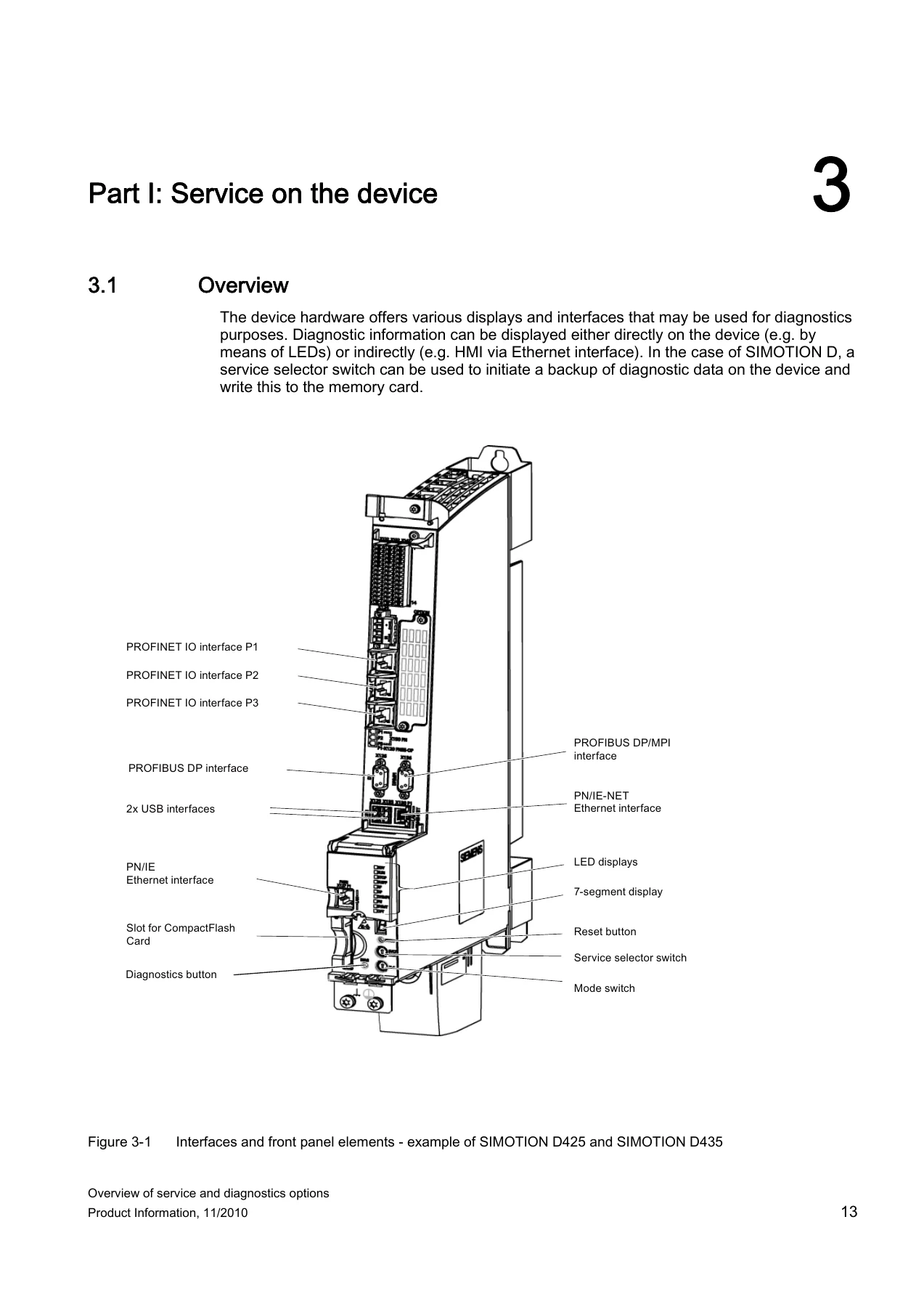
- Overview of on-device diagnostics
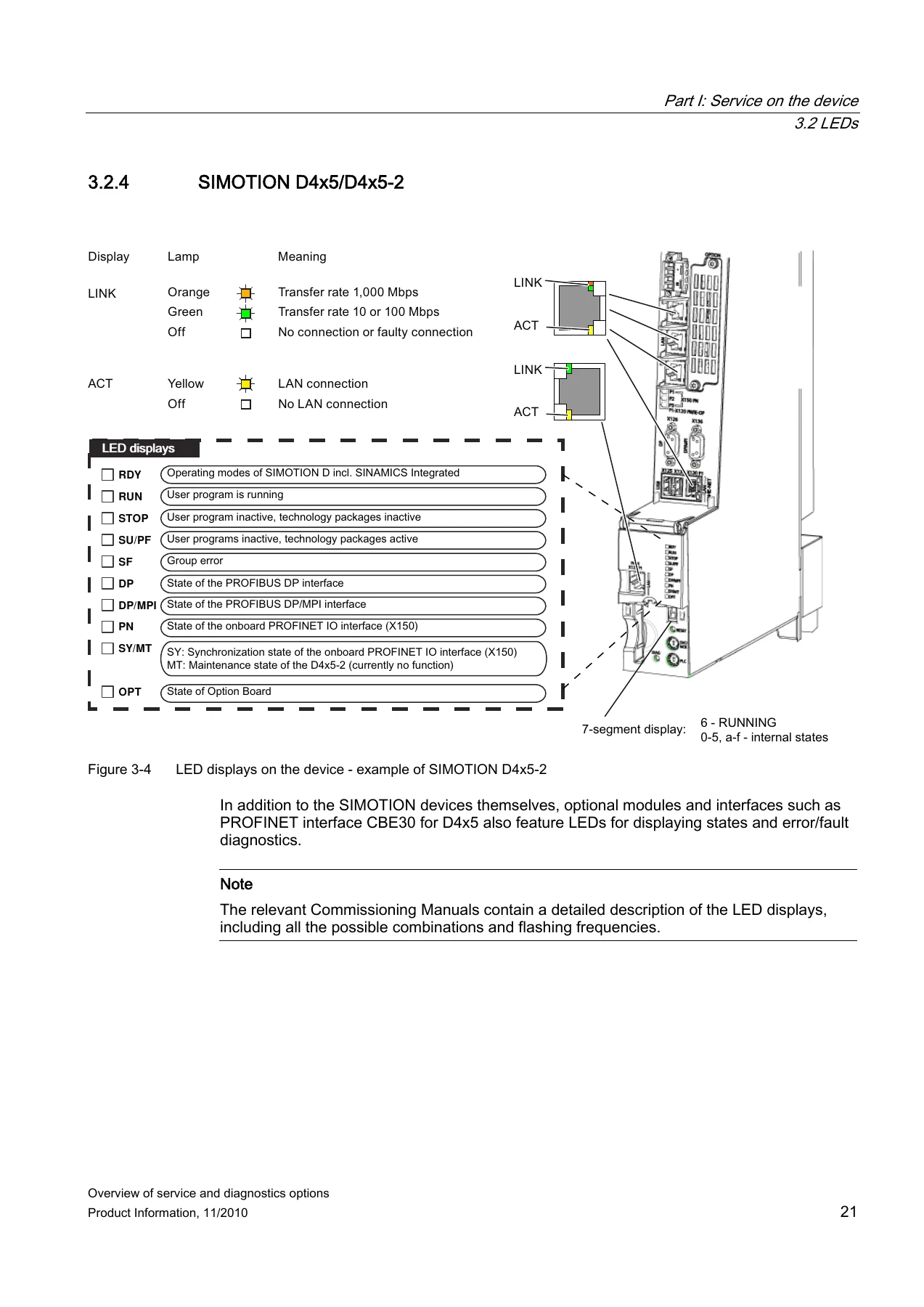
- LEDs – SIMOTION C, P320-3/P350-3, D4x5/D4x5-2, D410, CBE30, CX32/CX32-2, CU320/CU320-2, CBE20
- 7-segment display
- Interfaces
- HMI (WinCC flexible, Alarm_S and SIMOTION TO messages)
- Backing up diagnostic data and non-volatile data
- Updating devices using the Device Update tool
- Licensing / license key
- Part II: Service without SCOUT Engineering System (PC-based, IT DIAG)
- Establishing a connection to the device
- Device diagnostics – I&M data, diagnostics buffer, system utilization, analyzing user data
- Diagnostic data and non-volatile data (retain data)
- Backing up, updating and restoring device data
- User-defined service and diagnostics information
- Part III: Service with SCOUT Engineering System
- Going online via PROFIBUS and Ethernet/PROFINET, with and without a user project
- Factory settings for SIMOTION devices
- Device diagnostics – diagnostics buffer, system utilization, Userlog/Syslog, content.txt, service overview
- Ethernet/PROFINET topology
- Comparing projects
- Error handling in technology objects
- Advanced functions in the address list
- Testing programs
- Commissioning functions
- Appendix – backing up and restoring diagnostic data and non-volatile data
- Index
Read end to end, the manual is a complete fault-finding workflow rather than a reference shelf ornament. It starts with what the hardware itself can tell you before any PC is plugged in, moves on to what a standard browser can pull out of the controller over Ethernet, and finishes with the deeper analysis and online comparison tools inside SIMOTION SCOUT. Each part references the platform-specific Commissioning Manuals and Operating Instructions where device-level detail is needed, so the document works both as a standalone diagnostic guide and as a signpost into the wider SIMOTION documentation set.
What You Can Do With This Manual
The LED chapter is where most fault-finding starts. Every SIMOTION device carries status LEDs, and this manual pairs each one with its typical errors, frequent causes and remedies in table form. You get the practical mapping between what an LED is doing and what is actually wrong – a STOP LED lit yellow pointing at an I/O access error or a floating point exception, an SF LED flashing at 0.5 Hz flagging a missing technology or optional object license, a BUS1F/BUS2F indication tracing back to a missing or misplaced terminating resistor, a cabling fault, a duplicated PROFIBUS address or a wrong baud rate. The PROFINET side is covered too, including Link, Activity, Fault and Sync LEDs and what each combination says about the network.
The 7-segment display section explains the state codes shown on SIMOTION D4x5/D4x5-2 and P350 – 6 for RUNNING with cyclic tasks activated, 0 through 5 and a through f for the internal ramp-up states, and the flashing point that indicates communication between SIMOTION and SINAMICS Integrated. If a state other than 6 persists for more than three minutes during ramp-up, the manual tells you to go straight to the diagnostics buffer.
Web Diagnostics With IT DIAG
Part II is the part many technicians reach for first, because it needs nothing more than a browser and the controller’s IP address. The manual explains how to establish the connection, how to determine the IP addresses of both the PC and the SIMOTION device, and which settings cause a connection to fail – mismatched subnets, multiple Ethernet interfaces configured into the same subnet, disabled ports, an automatic configuration script or proxy entry left active on an IT-managed PC. Once you are in, IT DIAG exposes the diagnostics buffer, the SIMOTION and SINAMICS alarm buffers, I&M identification and maintenance data, component versions, firmware, MAC and IP addresses, memory size and assignment, processor utilization, task status and runtimes, and a service overview with axis states.
There is also a watch table with a symbol browser for monitoring SIMOTION and drive parameters, a variable trace with graphical evaluation, and the Tasktrace site for setting up and controlling the SIMOTION Task Trace in a multitasking environment.
Backing Up Diagnostic Data and Retain Data
After a fault, the evidence matters. This manual documents how to capture diagnostic data and non-volatile (retain) data, both during operation and during ramp-up, on every SIMOTION platform. On SIMOTION D that means the service selector switch – position 13 (hex D) on the left rotary switch of a D4x5, the upper SVC/NCK rotary switch on a D4x5-2, or DIP switch 7 on a D410 – or the DIAG button on a D4x5-2. On SIMOTION P320-3/P350-3 the diagnostic switch lives in the SIMOTION P state application. On any platform an INI file placed on the data carrier can trigger the backup at ramp-up. The manual gives the LED flash sequences that confirm a backup is running and complete, where the files land on the CompactFlash card or hard disk, what each file contains (DIAGBUF.TXT, PMEMORY.XML, TOALARMS.TXT, DIAGURLS.TXT and stored websites), and how to restore retain data after a CPU or memory card replacement.
License Keys and Device Updates
Under-licensing shows itself as a flashing SF LED and a diagnostics buffer entry, and the manual covers checking and amending licensing, generating license keys, transferring them to the memory card, and what to do if a key is lost with a faulty card. On the update side, the Device Update tool and the IT DIAG Manage Config site are both documented for creating update data, pushing it to a device by USB stick, CF/MMC card or over the network, and rolling back to the previously backed-up configuration if an update fails.
Get the Answers Before You Call the Hotline
IMAGES PREVIEW
Whether you are chasing a CPU STOP on a D435, a PROFINET device that will not come online, a drive alarm that keeps regenerating a technology object alarm, or a license that has gone missing, this Siemens SIMOTION service and diagnostics manual gives you the procedure, the display codes and the buffer entries needed to reach the cause instead of the symptom. Correct diagnostics protect the machine, shorten downtime and keep you from replacing parts that were never faulty. Delivery is instant – a downloadable PDF you can open on a laptop in the control cabinet, a tablet on the shop floor or a desktop in the office, and print if you prefer paper next to the panel.
Reviews
There are no reviews yet.