Epson Stylus 1000 Manual – PDF DOWNLOAD
$25.95
Epson Stylus 1000 Manual – PDF DOWNLOAD
Description
Epson Stylus 1000 Manual – PDF DOWNLOAD
FILE DETAILS:
Epson Stylus 1000 Manual – PDF DOWNLOAD
Language :English
Pages :123
Downloadable : Yes
File Type : PDF
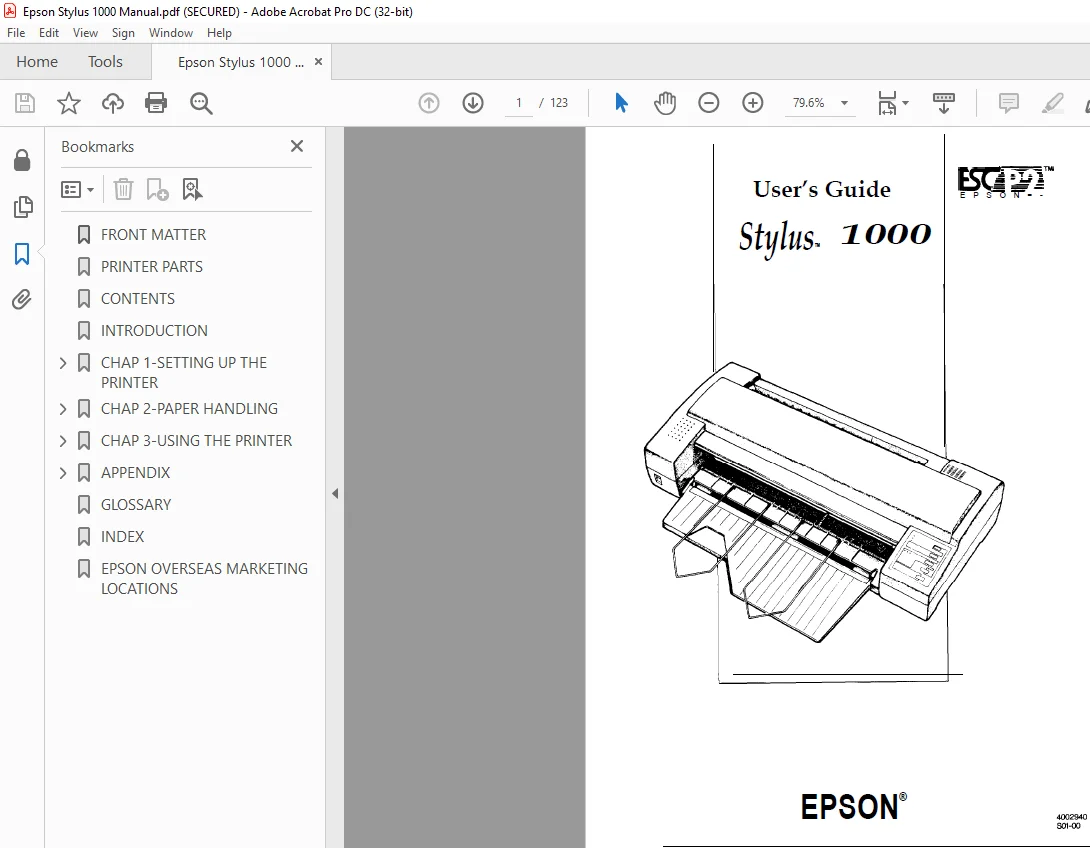
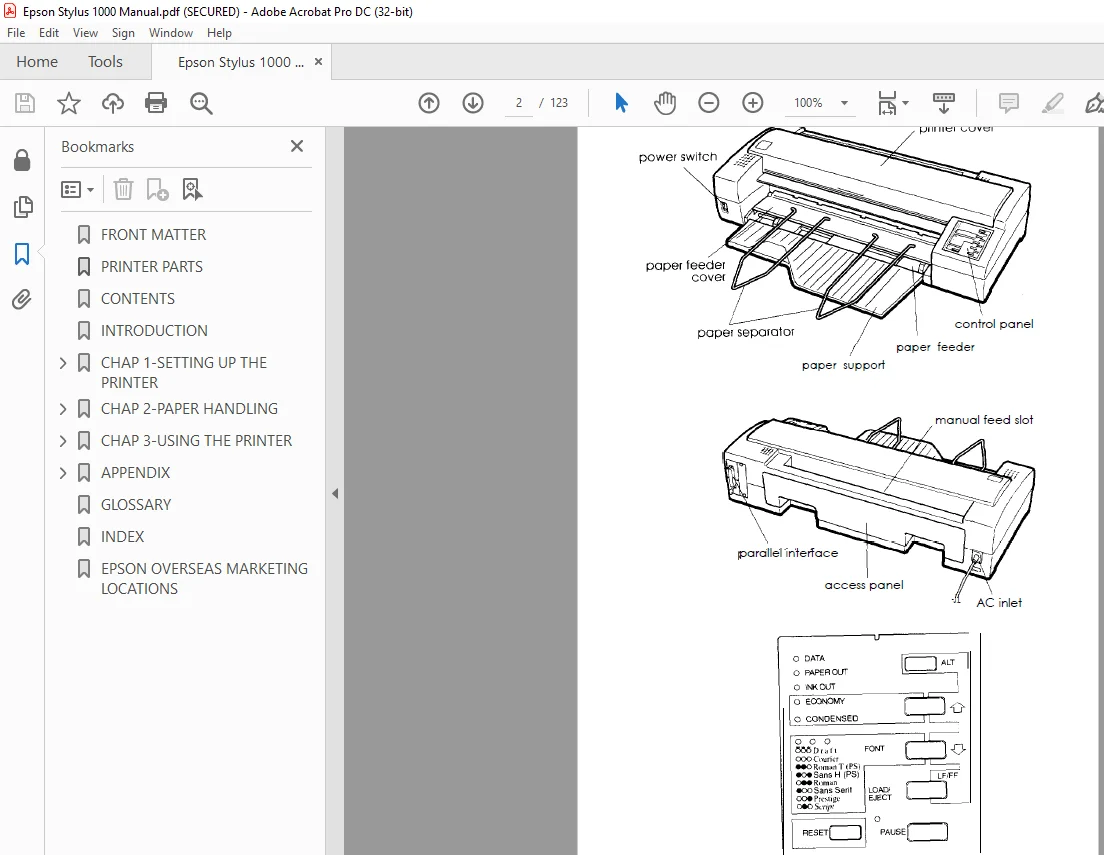
IMAGES PREVIEW OF THE MANUAL:
DESCRIPTION:
Epson Stylus 1000 Manual – PDF DOWNLOAD
Introduction
Your new Epson printer is a 48-nozzle ink jet printer, ideal for
quiet, high-speed printing.
Features
Your printer offers the following features:
High print quality. Epson’s new ink jet technology delivers
crisp x dot-per-inch text and graphics.
Flexible paper handling. Use the built-in paper feeder to
load up to sheets automatically. You can also insert
envelopes or single pages manually without removing the
paper supply.
Wide range of paper size with printable columns. You
can print on paper up to A3 size: mm x mm
inches x inches) using the paper feeder. You can
manually insert paper up to mm x mm inches
x inches).
Quiet printing. Ink jet technology helps maintain a quiet
working environment.
Epson P This enhanced printer control language
adds scalable fonts and improved graphics capability.
Compatibility. Supports the Epson commands
widely used in software written for other Epson printers.
Convenience. Drop-in ink cartridge prints up to pages.
(at characters per page, using the Roman font)
Introduction 2
Introduction
Options
The following options enable you to make full use of your
printer.
0 Push-Tractor Unit (C80029*)
With this option you can print on continuous paper as well
as single sheets. See Chapter 2 for details.
0 Interface Cards
Optional interface cards, including one for LocalTall<: are
available to supplement the printer’s built-in parallel
interface. See Chapter 3 for details.
How to Use This Manual
Here’s what you’ll find in this book:
Chapter 1 describes how to unpack and set up the printer.
It also describes printing a self test and configuring your
software for the printer. These instructions include basic
directions regarding the ink, paper, and placement of the
printer; be sure to read and follow these instructions
carefully.
Chapter 2 explains paper handling. It contains instructions
on using the optional push tractor and printing on special
paper.
Chapter 3 covers operating the control panel, changing
printer settings, the use of options, and maintenance and
troubleshooting.
The Appendix includes printer specifications, commands,
and character tables.
A glossary of printer terms and an index are included at
the end.
TABLE OF CONTENTS:
Epson Stylus 1000 Manual – PDF DOWNLOAD
Contents
Introduction
Features
Options 2
HowtoUseThisManual 2
Warnings, Cautions, and Notes 3
Chapter 1 Setting Up the Printer
About Your Ink Jet Printer l-2
A few precautions l-2
Choosing the right paper 1-4
Unpacking the Printer 1-5
Attaching the paper support and the paper separators l-6
Choosing a Place for the Printer l-7
Plugging in the Printer l-8
Installing the Ink Cartridge l-9
Loading Paper in the Paper Feeder l-13
Testing the Printer l-15
Connecting the Printer to Your Computer l-17
Setting Up Your Software Programs l-18
Chapter 2 Paper Handling
Printing on Single Sheets , 2-2
Tips on using the paper feeder 2-2
Adjusting the loading position-Adjusting the
print position
Loading paper manually 2-5
Using Continuous Paper with Optional Push Tractor 2-7
Installing the push tractor 2-7
Loading continuous paper 2-8
Tips on using continuous paper 2-11
Using the tear-off feature 2-12
Removing the push tractor 2-13
Switching Between Continuous Paper and Single Sheets 2-14
Switching to single sheets 2-14
Switching to continuous paper 2-15
Printing on Special Paper 2-16
Envelopes 2-16
Printing on envelopes
Labels 2-18
Chapter 3 Using the Printer
Operating the Control Panel 3-2
Indicator lights 3-2
Buttons 3-3
Selecting Character Fonts 3-5
Scalable fonts 3-6
Condensed printing 3-7
Using the Default-Settings Mode 3-7
Default settings descriptions 3-9
Character table -Auto print direction –
Continuous-paper page length –
Skip-over-perforation -Network interface mode
-Mixed text/graphics mode -Auto line feed –
Auto interface selection – Auto interface wait
time -Tear off
Changing the default settings 3-11
Optional Interface Cards 3-15
Installing an interface card 3-16
The C82305*/C82306* serialinterface card 3-17
Selecting a baud rate -Handshake timing –
Maintenance and Transportation 3-18
Replacing the ink cartridge 3-18
Cleaning the print head 3-20
Cleaning the printer 3-20
Transporting the printer 3-21
Troubleshooting 3-22
Error indicators 3-22
Power supply 3-24
Printing 3-25
Paper handling 3-29
Clearing a paper jam-Preventing paper feeding
and paper jam problems
Appendix
Technical Specifications , A-2
Printer specifications A-2
Printing-Paper-Mechanical-Electrical-
Environmental-Safety approvals
Interface specifications A-7
Specifications and pin assignments-Interface
timing
Initialization A-10
Default settings
Command Summary A-11
Sending printer commands A-11
Using the command summary A-12
General operation-Paper feeding–Page
format-Print position motion-Font selection-
Font enhancement-Spacing-Character
handling-Graphics-Bit image
Character Tables A-20
S.M 1/3/2025